
The Apache HTTP Server, commonly referred to as Apache, is one of the world’s most widely used web server software applications. The Apache Software Foundation developed the software and is known for its reliability, flexibility, and open-source nature. Apache operates as a powerful platform for hosting websites, web applications, and services across a broad range of operating systems.
In this article, we’ll discuss what Apache HTTP Server is, what it does, and what it is used for. The article also discusses the procedures on how to install, use and update Apache on Linux distributions and Windows operating system.
What Does the Apache HTTP Server do?
At its core, Apache listens for incoming web requests and responds by serving the correct resources to the client. It supports a wide range of features such as virtual hosting, URL redirection, authentication modules, SSL/TLS encryption, and various extensions that enhance server performance and security. Its modular architecture also allows administrators to tailor the server to their specific needs, making it a versatile solution for different deployment environments.
What is Apache HTTP Server Used for?
- Apache is used to host static and dynamic websites, deliver APIs, operate backend services, and provide secure communication through HTTPS.
- It supports various programming languages such as PHP, Python, Perl, and more through modules. Enterprises, developers, and hosting providers rely on Apache because of its stability and ease of customization.
- Many tutorials emphasize Apache HTTP Server setup because it remains essential for both development and production environments.
How to Download Apache HTTP Server for Linux Distributions and Windows
You can officially download Apache from the Apache Software Foundation website. Linux distributions generally provide Apache directly through their built-in package managers, while Windows users can obtain a pre-compiled installation package.
To obtain the latest Apache HTTP Server version, users should access the official downloads page and select the appropriate installer or package. Linux users can rely on APT, YUM, or DNF, while Windows users can download a ZIP archive or MSI installer. This ensures that the Apache HTTP Server download is secure and up to date.
Steps for Downloading Apache HTTP Server on Windows
- Steps for Downloading Apache HTTP Server on Windows:
- Before installing Apache, you must have the appropriate Microsoft Visual C++ Redistributable for your system (32-bit or 64-bit) installed. The necessary link can be found on the Apache Lounge download page.
- Download the Apache HTTP Server binary:
- Visit the Apache Lounge download page and download the latest version of the Apache for Windows (a .zip file) that matches your system architecture (Win64 or Win32).
- Extract the files:
- Once the download is complete, extract the contents of the ZIP file to the root of your C: drive so that the installation directory is C:\Apache24. Placing it here matches the default configuration file settings, simplifying the setup process.
A. Procedures for Installation, Usage and Updates for Linux Distributions
The following procedures include command codes that you enter a Command Line Interface (Command Prompt) terminal.
How to Install Apache HTTP Server in Linux Distributions
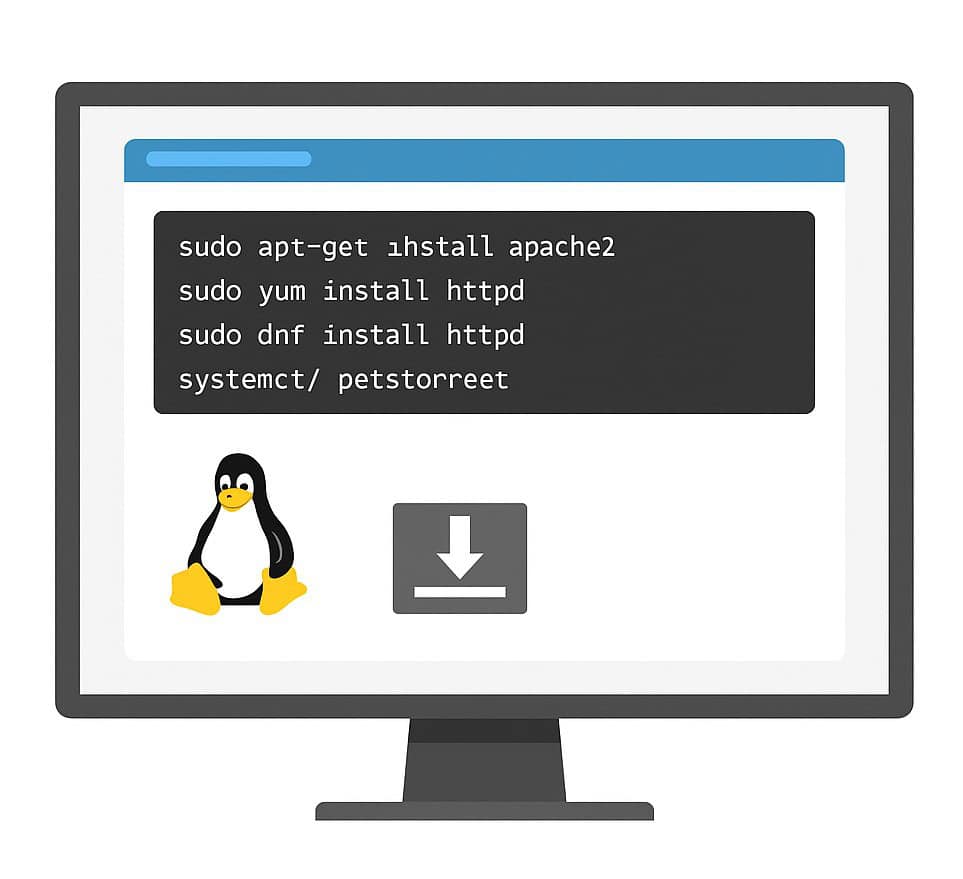
Linux-based systems provide the most streamlined and efficient method for installing Apache. Below are the steps commonly used across Debian-based, Red Hat-based, and other major Linux distributions.
Using Package Managers
- Update your system repositories:
sudo apt update # Debian/Ubuntusudo yum check-update # CentOS/RHELsudo dnf check-update # Fedora
- Install Apache HTTP Server:
sudo apt install apache2sudo yum install httpdsudo dnf install httpd
- Verify the installation:
apache2 -v # Debian/Ubuntuhttpd -v # CentOS/Fedora
The above code ensures that the latest Apache HTTP Server version is successfully installed and ready for configuration.
How to Start Apache HTTP Server on Linux Distributions
Linux uses systemd to manage service interactions for Apache.
- Starting, Stopping, and Restarting Apache:
sudo systemctl start apache2 # Debian/Ubuntusudo systemctl start httpd # CentOS/Fedora
- Check Apache Status:
sudo systemctl status apache2sudo systemctl status httpd
If the service is active and running after you enter the above code, your Apache HTTP Server setup is functioning correctly.
How to Use Apache HTTP Server on Linux Distributions
Using Apache involves accessing configuration files, creating hosted content, and managing modules.
- Serve a basic webpage:
- Place HTML files in:
/var/www/html/ for Debian/Ubuntu/var/www/ for CentOS/Fedora
- Access via:
http://your-server-ip/
- Place HTML files in:
- Manage modules:
sudo a2enmod rewrite # Enable modules (Debian-based)sudo a2dismod rewrite # Disable modules
- Edit Apache Configuration:
- Configuration files are located at:
/etc/apache2/apache2.conf/etc/httpd/conf/httpd.conf
- Configuration files are located at:
These files control site behavior, security, and Apache HTTP Server configuration.
How to Update Apache HTTP Server on Linux Distributions
Keeping Apache updated improves performance and security.
- Update Using Package Managers:
sudo apt upgrade apache2sudo yum update httpdsudo dnf upgrade httpd
After updating, confirm the installed Apache HTTP Server version to ensure your environment is current and secure.
B. Procedures for Installation, Usage and Updates for Windows
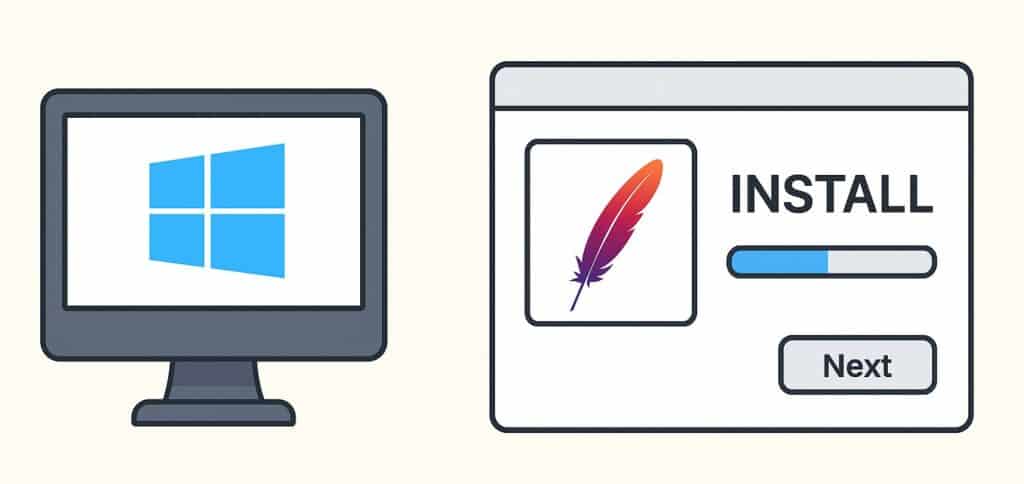
Windows installation requires downloading a compiled Apache package from an official mirror or a trusted distributor.
How to Install Apache HTTP Server on Windows
The following steps will provide a complete Apache HTTP Server setup on your Windows machine:
- Download Apache Binaries:
- Go to the Apache Lounge page and download the latest version of pre-compiled binaries for your Windows system (32-bit or 64-bit).
- Extract the Files:
- Extract the downloaded ZIP file to the root of your C: drive, so the path to the Apache folder is C:\Apache24.
- Configure the Server:
- Navigate to C:\Apache24\conf and open the httpd.conf file using a text editor (like Notepad).
- Ensure that the ServerRoot directive is set correctly: ServerRoot “C:/Apache24”.
- Check the Listen directive, which is typically set to Listen 80. If port 80 is unavailable, you can change it here (e.g., Listen 8080).
- Uncomment the ServerName directive by removing the # at the beginning of the line and set it to ServerName localhost:80 (or the port you chose).
- Install Apache as a Windows Service:
- Open a Command Prompt terminal.
- Change the directory to the Apache bin folder by entering cd C:\Apache24\bin.
- Install the service using the command: httpd.exe -k install.
- Test the configuration file for errors before starting the service with the command: httpd.exe -t. It should return “Syntax OK”.
How to Start Apache HTTP Server on Windows
Windows manages Apache through the Apache Monitor or system services:
- Open Apache Monitor from the Start menu.
- Click Start to run Apache.
- Alternatively, use Windows Services:
- Open Run → services.msc
- Locate Apache2.4
- Click Start
How to Use Apache HTTP Server on Windows
Using Apache on Windows is similar to Linux, though configuration locations differ.
- Serve Pages:
- Place HTML files in C:\Apache24\htdocs\
- Access through http://localhost/
- Modify Configuration Files:
- Edit C:\Apache24\conf\httpd.conf
- This is the main file for Apache HTTP Server configuration on Windows.
- Enable Modules:
- Remove the # symbol from module lines inside httpd.conf.
How to Update Apache HTTP Server on Windows
Windows updates must be applied manually:
- Download the latest Apache HTTP Server download version.
- Stop the Apache service.
- Replace the old installation with the new version or run the updated installer.
- Restart Apache via the Apache Monitor.
Importance of Apache as a Web Server Software
Apache HTTP Server remains one of the most flexible and widely adopted web server platforms available today. Its cross-platform compatibility, extensive module support, and open-source nature make it ideal for developers, administrators, and organizations of all sizes. Whether on Linux or Windows, understanding how to install, start, configure, use, and update Apache is essential for effective server management. By following these practical steps and ensuring that the correct Apache HTTP Server version is installed, users can maintain a secure and efficient environment. With proper Apache HTTP Server configuration, administrators can tailor the server to meet performance needs, enhance security, and support scalable web applications.
Why Choose ServerHub’s Dedicated Servers for Apache Web Hosting
If you run the Apache HTTP Server and are looking for hosting solutions that deliver maximum performance, ServerHub’s dedicated servers are a smart choice. Our bare-metal servers give you exclusive access to full CPU and memory resources, ideal for Apache’s demand for stable compute power and fast I/O under heavy traffic. We also offer high-bandwidth network uplinks and SSD/enterprise-grade storage, which enhances page loading speeds and reduces latency, beneficial if your Apache-based site serves media or dynamic content. Contact us now to get started with a dedicated server and experience Apache hosting at its full potential.
References:
- Apache HTTP Server Project
- Compiling and Installing Apache HTTP Server
- How To Install the Apache Web Server on Ubuntu
- Windows Apache Binary Releases Guide
- Red Hat Documentation for Apache